We’ve made it simple to connect your WooCommerce store so you can display rates at checkout and import orders. Just follow the steps below.
TABLE OF CONTENTS
- Before You Begin
- Steps to Connect FreightExchange & WooCommerce
- Steps in Installing and Activating FreightExchange Plugin in WooCommerce
Before You Begin
If you haven’t already signed up for FreightExchange, create an account here. This will give you the credentials required to access our API.
- You’ll need admin access to both your FreightExchange account and your WooCommerce store.
Steps to Connect FreightExchange & WooCommerce
1. Generate an API Key
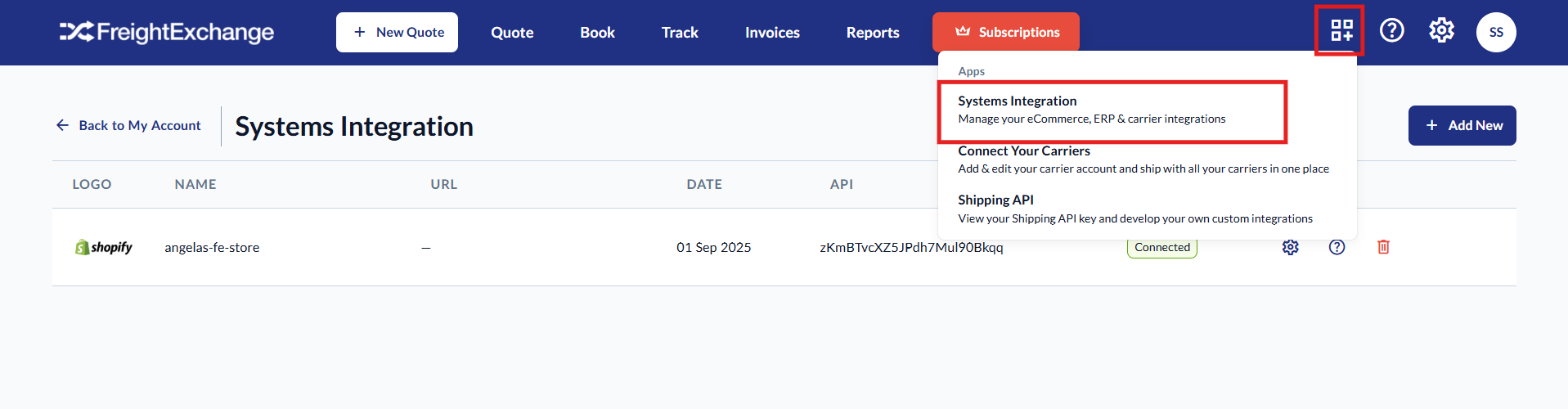
Log in to FreightExchange and go to Apps > System Integrations.
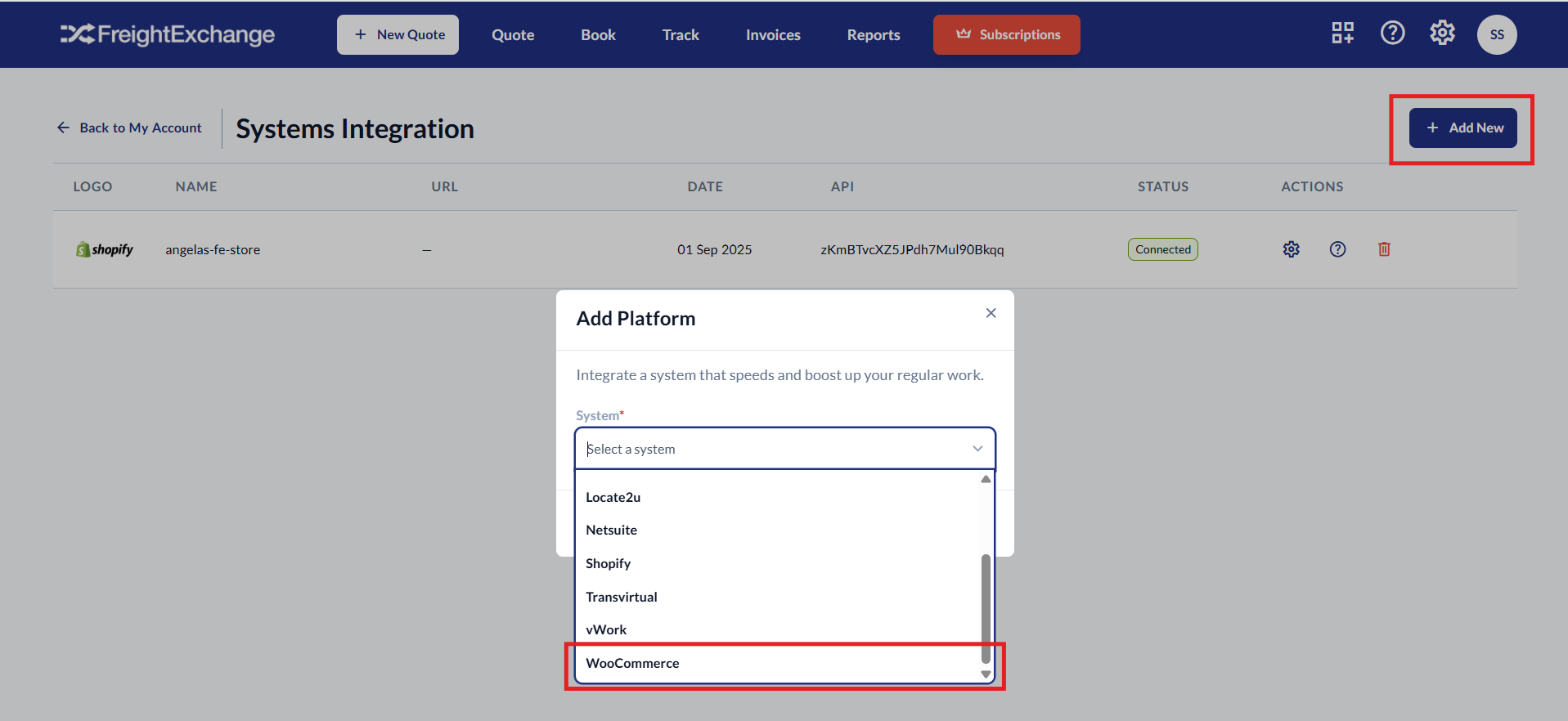
Click Add New and select WooCommerce from the dropdown list.
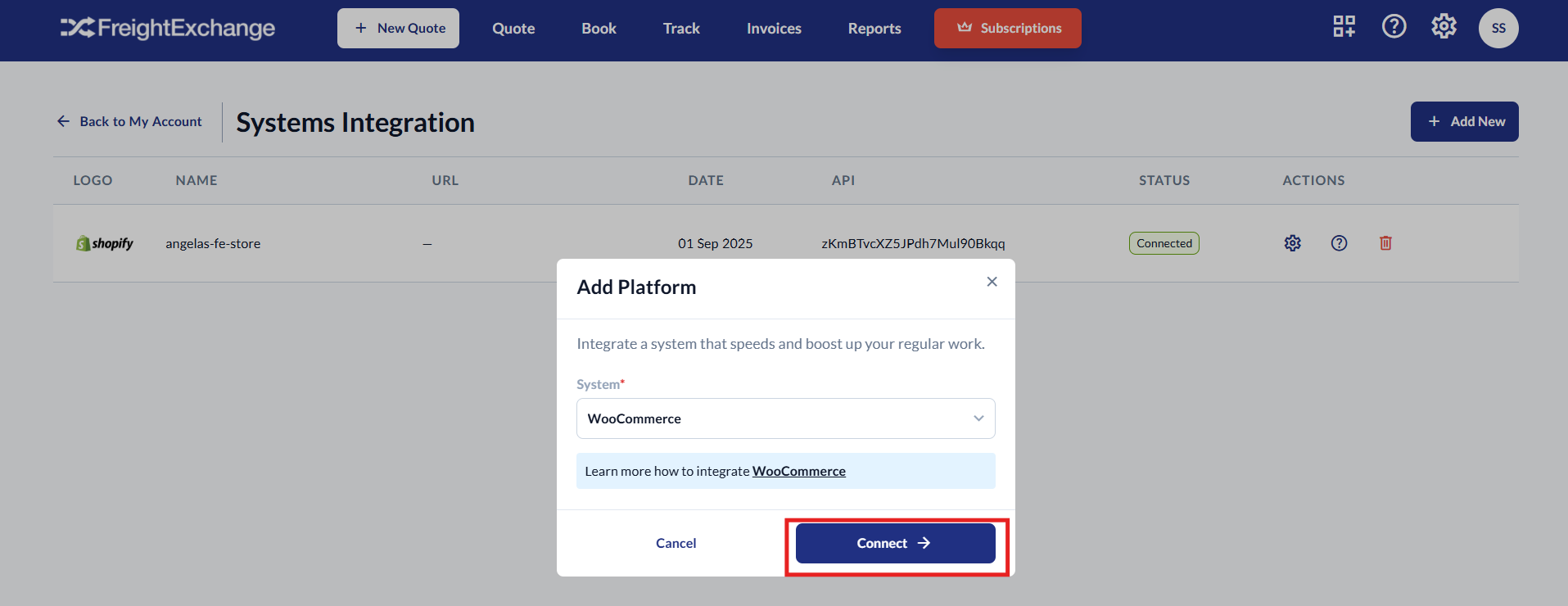
Click Connect. An API key will be generated.
Copy this API key — you’ll need it later in WooCommerce to complete the connection.
2. Activate the FreightExchange Plugin
In WooCommerce, install and activate the FreightExchange plugin.
Follow this guide for detailed activation steps.
3. Packaging
If you’ve already set up product dimensions in WooCommerce, the plugin will automatically read them and use this data to calculate freight costs.
If your product ships in multiple packages, follow these steps:
In WooCommerce > Products, search for the product you want to update.
Click on the product name to open its details.
On the product page, go to Product Data > Attributes, then click Attributes.
Set the following:
Name =
packagingidsValues =
packagingidnum_1, packagingidnum_2, ...
Example: If the product with SKU
SK-0017ships in 3 packages, enter the values as:SK-0017_1,SK-0017_2,SK-0017_3
(separate with commas, with no spaces after commas).
4. Verify the Installation
Follow these steps to confirm the setup was successful:
Navigate to Apps > System Integrations in FreightExchange. Your WooCommerce store name should appear under the app, with the status shown as Connected.
Place a test order on your store. At checkout, enter a shipping address and proceed. You should see FreightExchange rates (for Cheapest & Fastest options) displayed.
Once an order is placed (by a customer or as a test), it will automatically appear on the Quote page* in FreightExchange, with all shipping details pre-filled.
*You are able to modify the order on the quote page. Once ready, you can proceed to confirm the quote and book the pick-up.
5. Troubleshooting
If things aren’t working as expected, try the following:
Check WooCommerce access: Contact WooCommerce support first to confirm your store access and setup are correct.
Check plugin conflicts: Other plugins may cause clashes. Deactivate any unnecessary or obsolete plugins and test again.
Check tax settings: If your shipping costs appear too high in FreightExchange, review your tax settings in WooCommerce.
Check Debug Mode: Make sure “Enable debug mode” is unchecked. If this is enabled, rates will continually recalculate and prevent customers from completing checkout.
To update this setting, go to Settings > Shipping > Shipping Settings, then find and disable the Debug mode option.
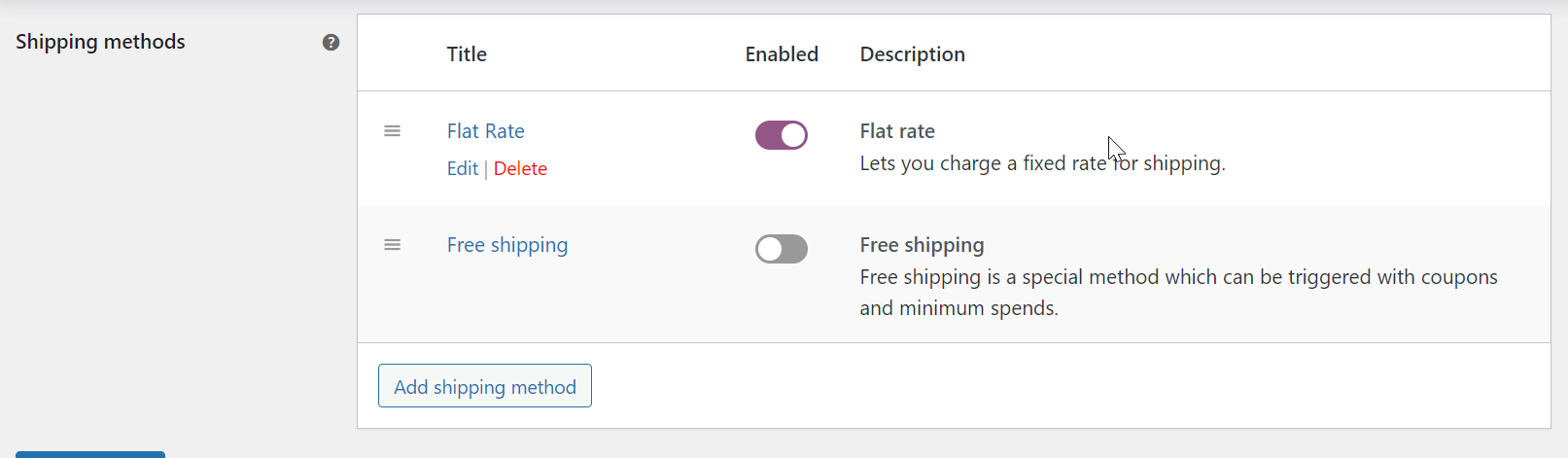
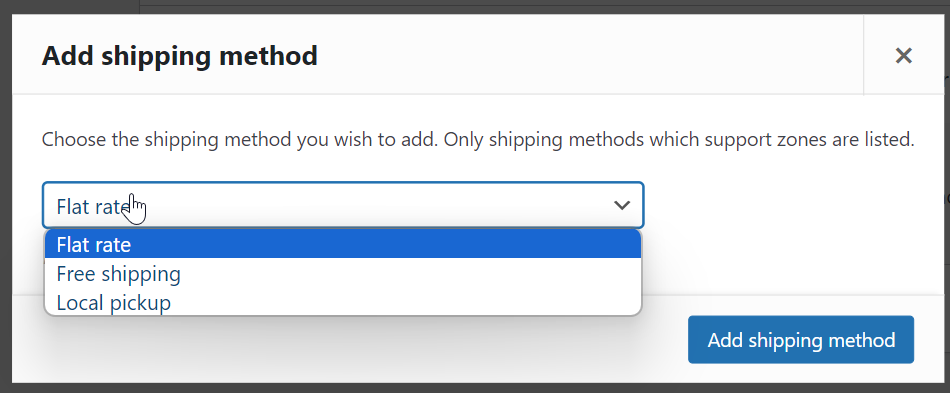
6. Steps to set up the Local pickup option
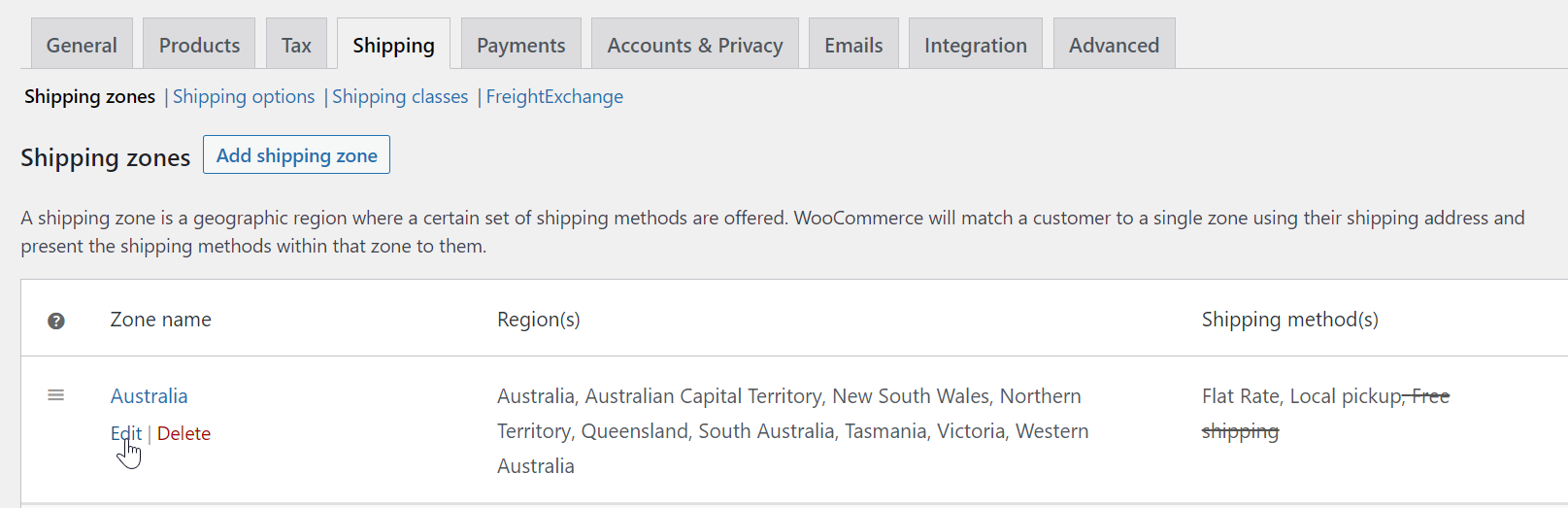
2. Go to the relevant zone and click on Edit.
Steps in Installing and Activating FreightExchange Plugin in WooCommerce
- In your WordPress dashboard, go to Plugins => Add New. Search for “FreightExchange”, and click Install Now.
After the installation process completes, click the Activate Plugin link to activate the plugin. - Once the installation is done, FreightExchange will appear under WooCommerce > Settings > Shipping > FreightExchange.
- Under FreightExchange, please set the following:
- Check the “Enable” checkbox if you want to use rates from the FreightExchange platform at the checkout
- Paste the FreightExchange API Key which was generated for you in FreightExchange.
- Check the “Enable” checkbox for “Show Prices Inclusive of GST”.
- Enter the Origin Contact Name, in order to make bookings, we need to send a contact name of a person at the origin address to the carriers.
- Enter the Origin Phone Number, in order to make bookings, we need to send a phone number of a person at the origin address to the carriers, this can be either a phone number of landline. Please note that there should be no special characters or spaces when you enter the phone number.
- Freight Cost (Default), backup flat shipping cost shown to customers when the quote request to FreightExchange fails due to some reason.
- Markup / Shipment as %, make money on shipping by adding a percentage markup on freight cost send back from FreightExchange. If we sent back $10 via API and you have said 20% markup, we will show the shipping cost as $12 in the checkout screen. This can be used together with the fixed markup.
- Markup / Shipment as $, Make money on shipping by adding a fixed markup on freight cost send back from FreightExchange. If we sent back $10 via API and you have said $5 markup, we will show the shipping cost as $15 in the checkout screen. This can be used together with the percentage markup.
- Exclude rates for Shipping class, slug for the shipping class for which you don’t want to show the rates from FreightExchange. If the product belongs the mentioned Shipping class and only that product is ordered than the FreightExchange rates will not be displayed, but if the product is ordered with another product which needs the LIVE rates than the FreightExchange rates will be displayed.
- Go to Settings > Shipping > Shipping settings and uncheck the “Enable debug mode” for “Debug mode” option. If this is checked then the rates will keep on recalculating and customers will be unable to proceed.
- Go to Settings > Tax > Tax options and select “Yes, I will enter prices inclusive of tax” for the option “Prices entered with tax”.
- Go to Settings > Tax > Standard rates and make sure that the shipping is unchecked, as the rates returned by FreightExchange are inclusive of GST.
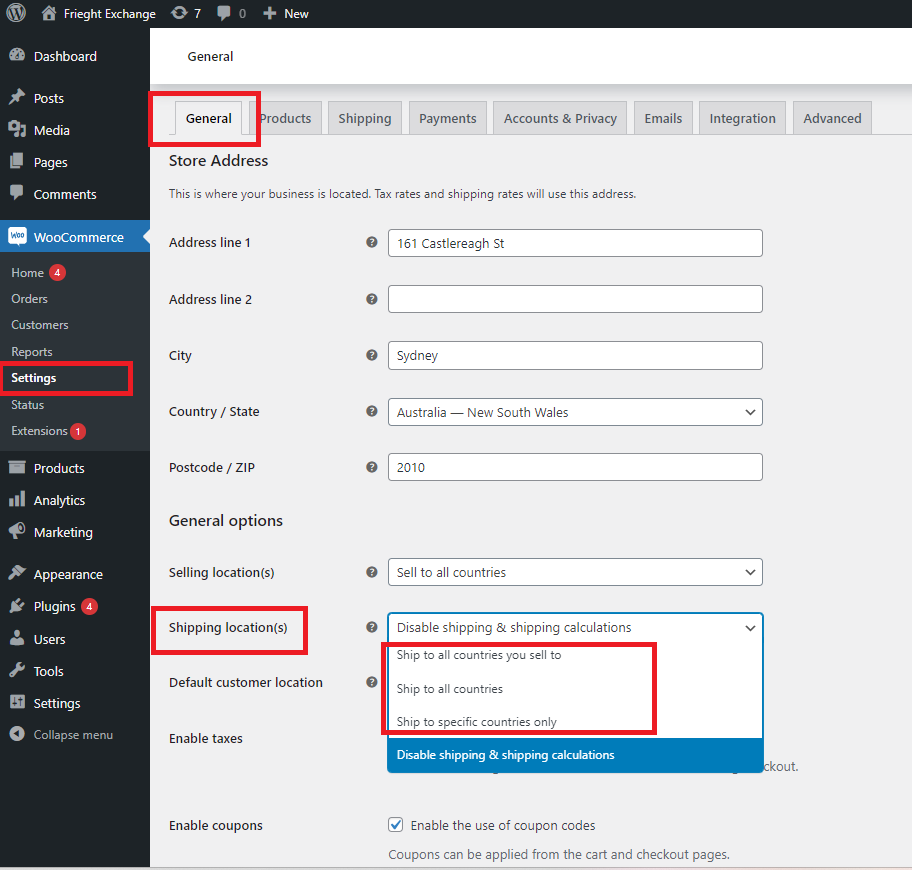
Note: If you can't find the Shipping tab in WooCommerce Settings, you must first update the shipping location. In the Settings, go to General > Shipping location(s).
By default, it is set as "Disable shipping & shipping calculations". Click the drop down and change it any of the options highlighted below with what is applicable to your business.
After you save the changes, Shipping tab should be available.
For more information about our plugins' features and FAQs, you may visit our Shipping Plugins FAQs article.
Anything else? Please email sales@freightexchange.com.au and we'd love to help!

Was this article helpful?
That’s Great!
Thank you for your feedback
Sorry! We couldn't be helpful
Thank you for your feedback
Feedback sent
We appreciate your effort and will try to fix the article