Tags are a useful tool for organising shipments and bookings. They allow users to categorise and group shipments based on specific criteria, making it easier to search, filter, and report on them.
TABLE OF CONTENTS
How to Add Tags in Quote Page
Step by Step Guide
To add an existing tag to a booking, follow these steps:
1. Go to the Quote page.
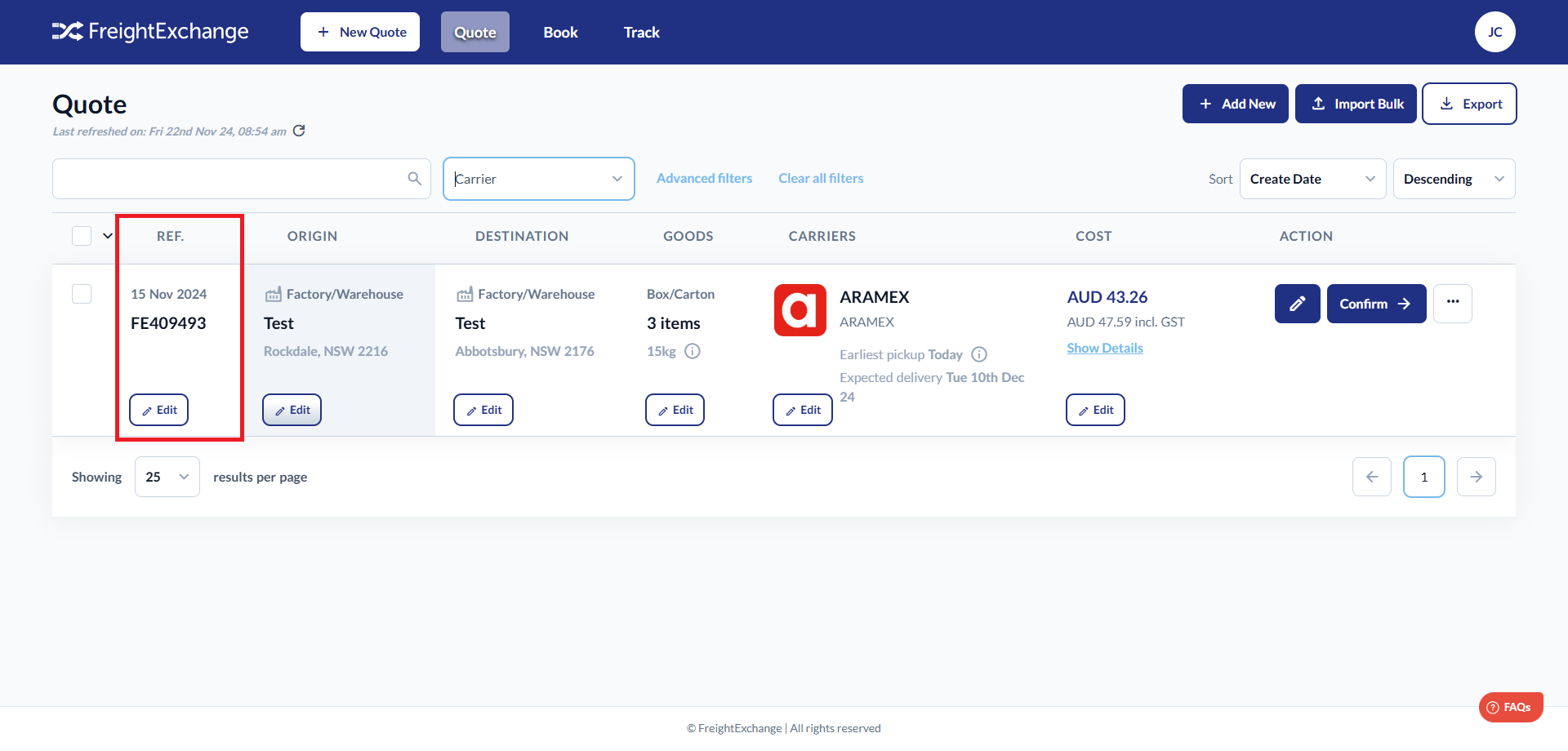
2. Click on the Ref. column of the booking you want to add tags to.
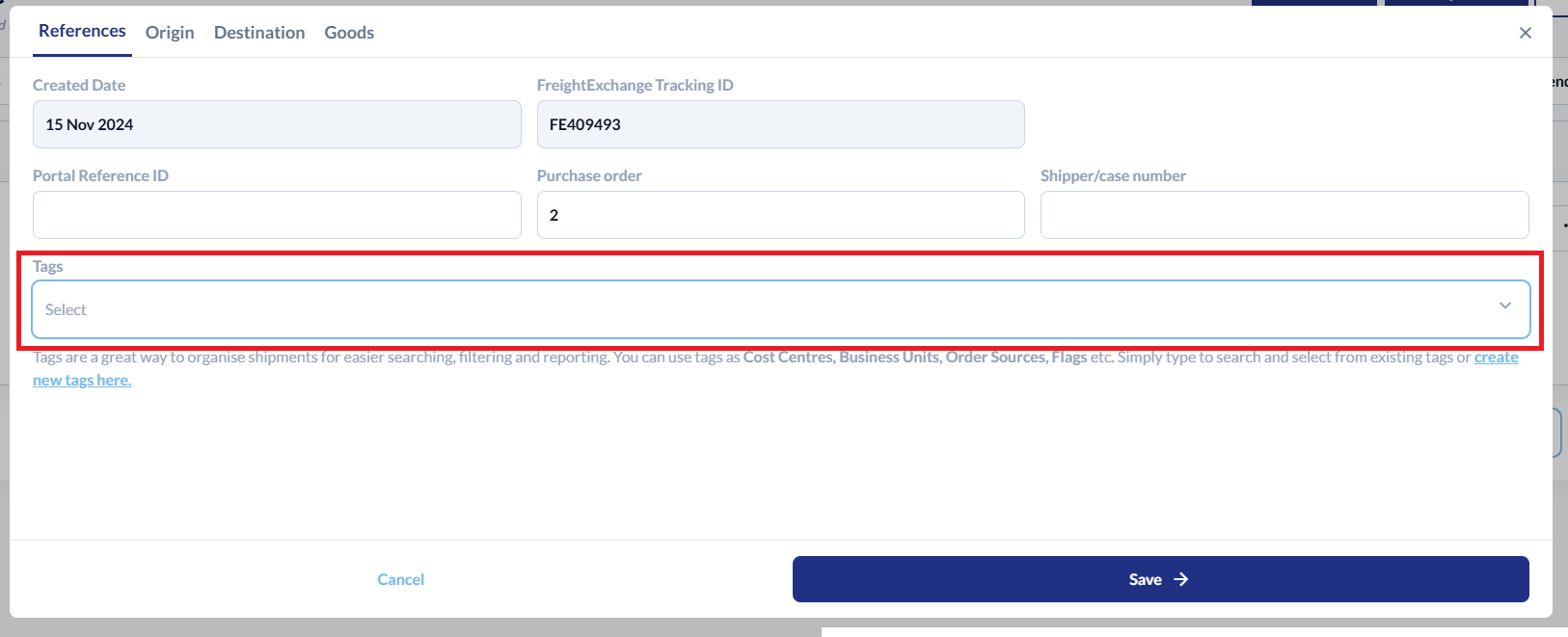
3. A pop-up window will appear. Click on the Tags drop-down menu and choose the applicable tag from the list.
4. Click Save to add the tag to the booking.
Once the tag is added, you can use it as a search filter to find bookings with that specific tag.
Step by Step Guide in Pictures
1. Go to the Quote page.
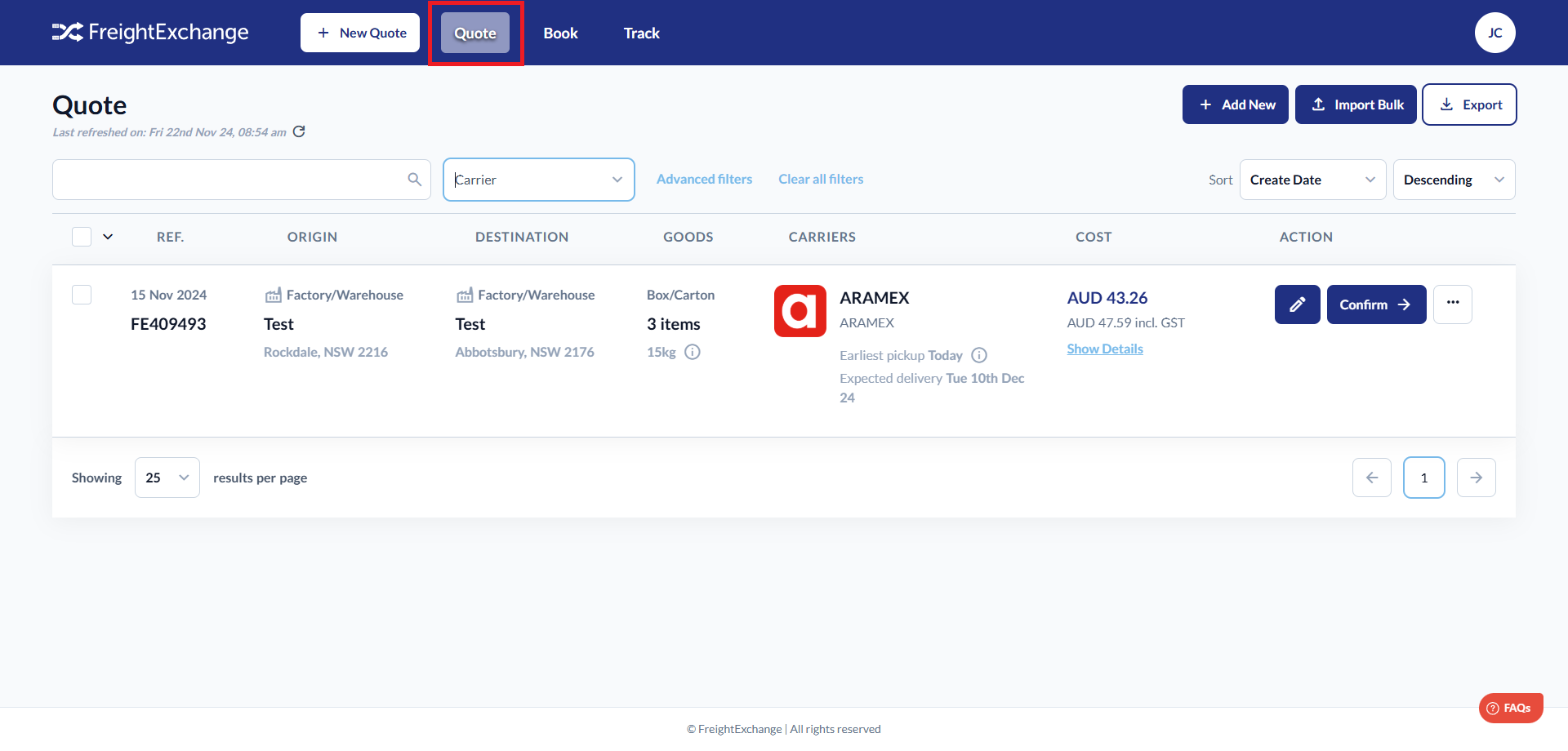
2. Click on the Ref. column of the booking you want to add tags to.
3. A pop-up window will appear. Click on the Tags drop-down menu and choose the applicable tag from the list.
4. Click Save to add the tag to the booking.
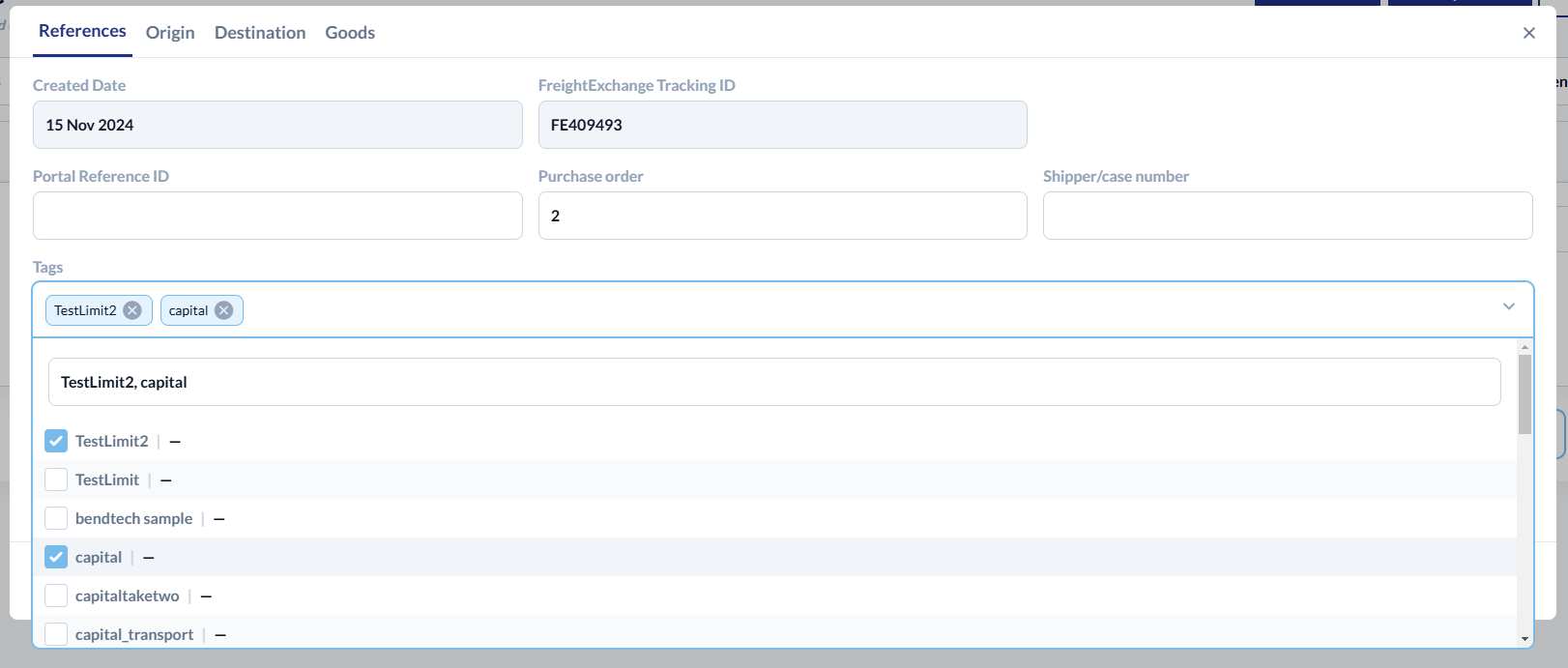
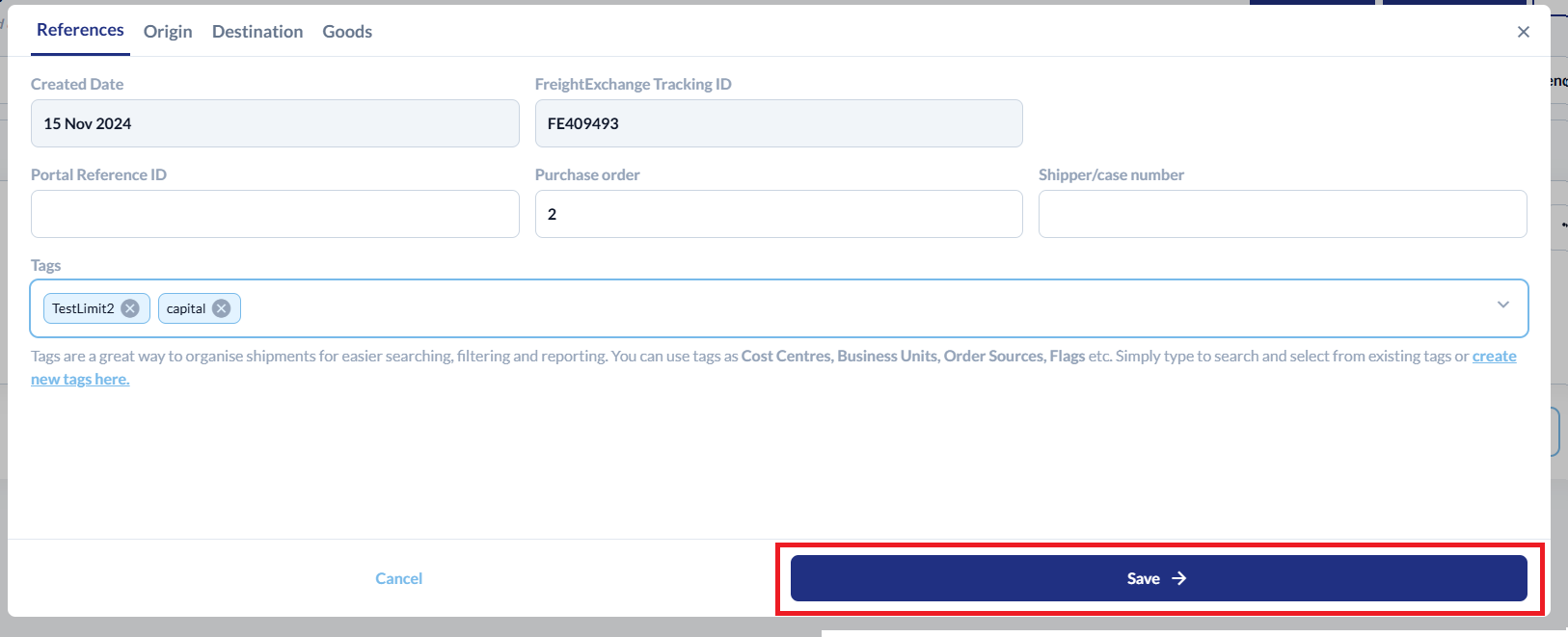
Once the tag is added, you can use it as a search filter to find bookings with that specific tag.
How to Add Tags in Settings
FreightExchange gives you the ability to create tags to categorise and group shipments based on specific criteria, making it easier to search, filter, and report on them. Once configured, you can add them to your bookings.
Step by Step Guide
To create a tag:
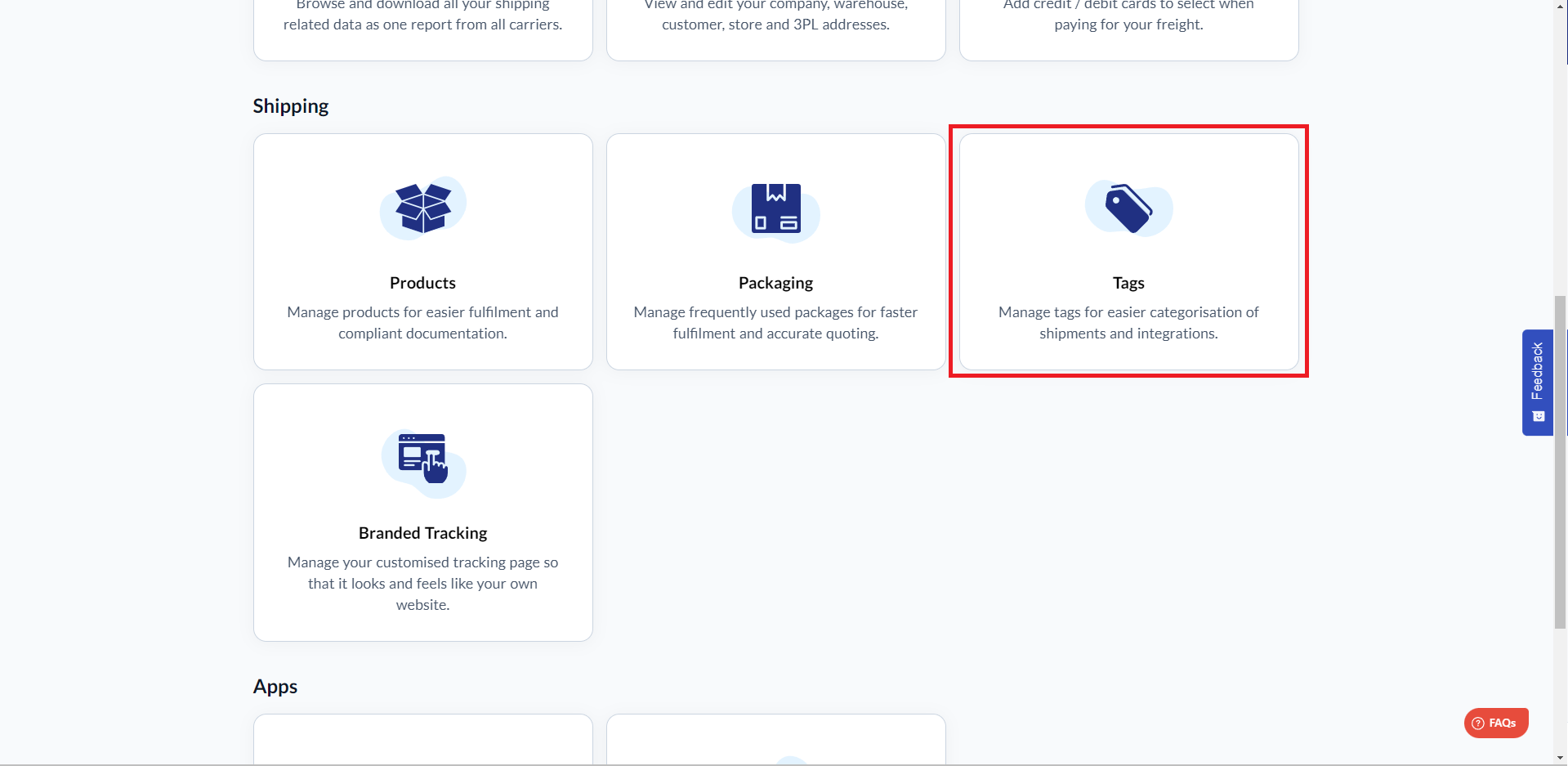
- Navigate to Settings > Tags
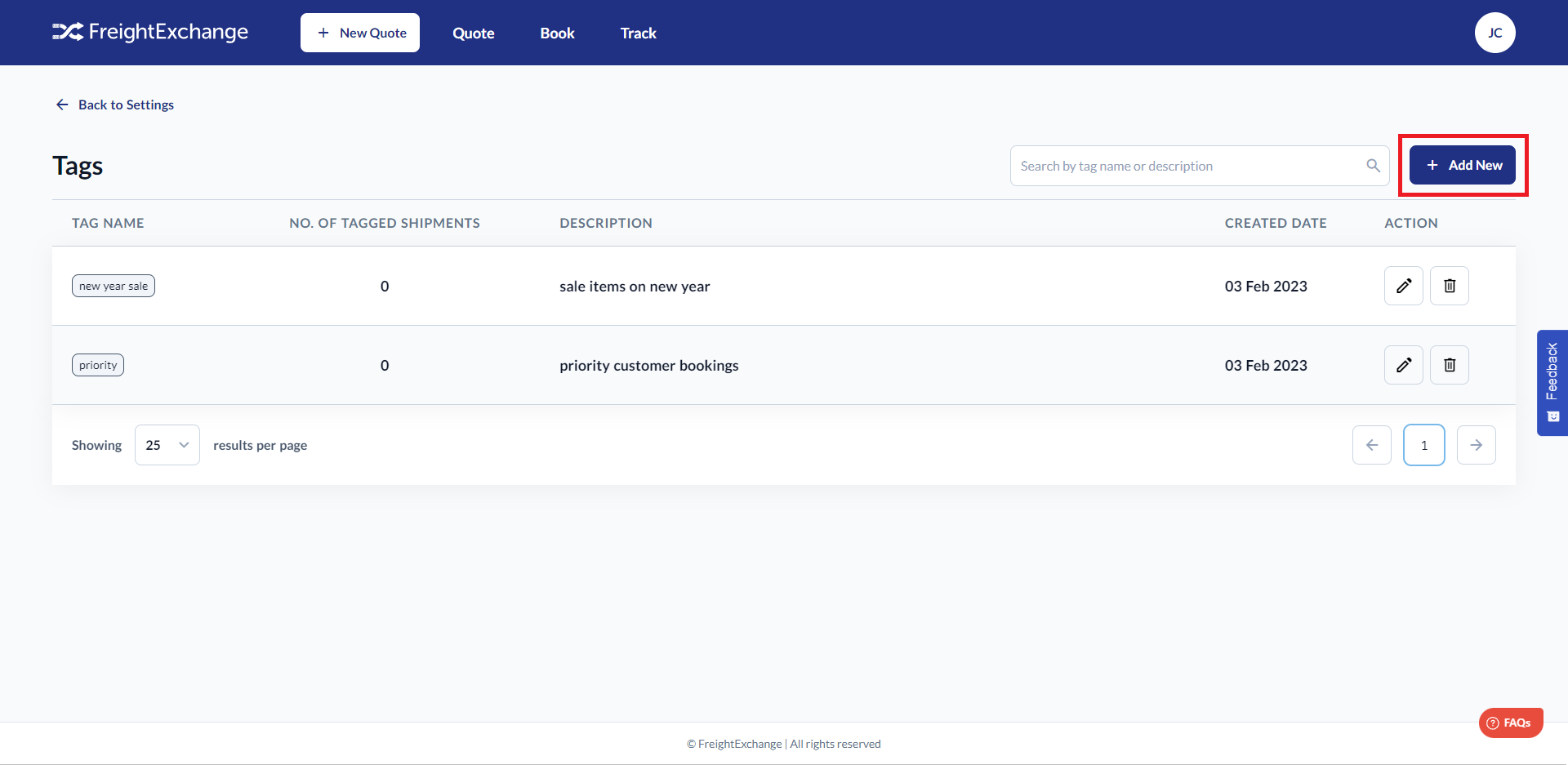
- The Tags settings page will be displayed. Click on the "+Add New" button.
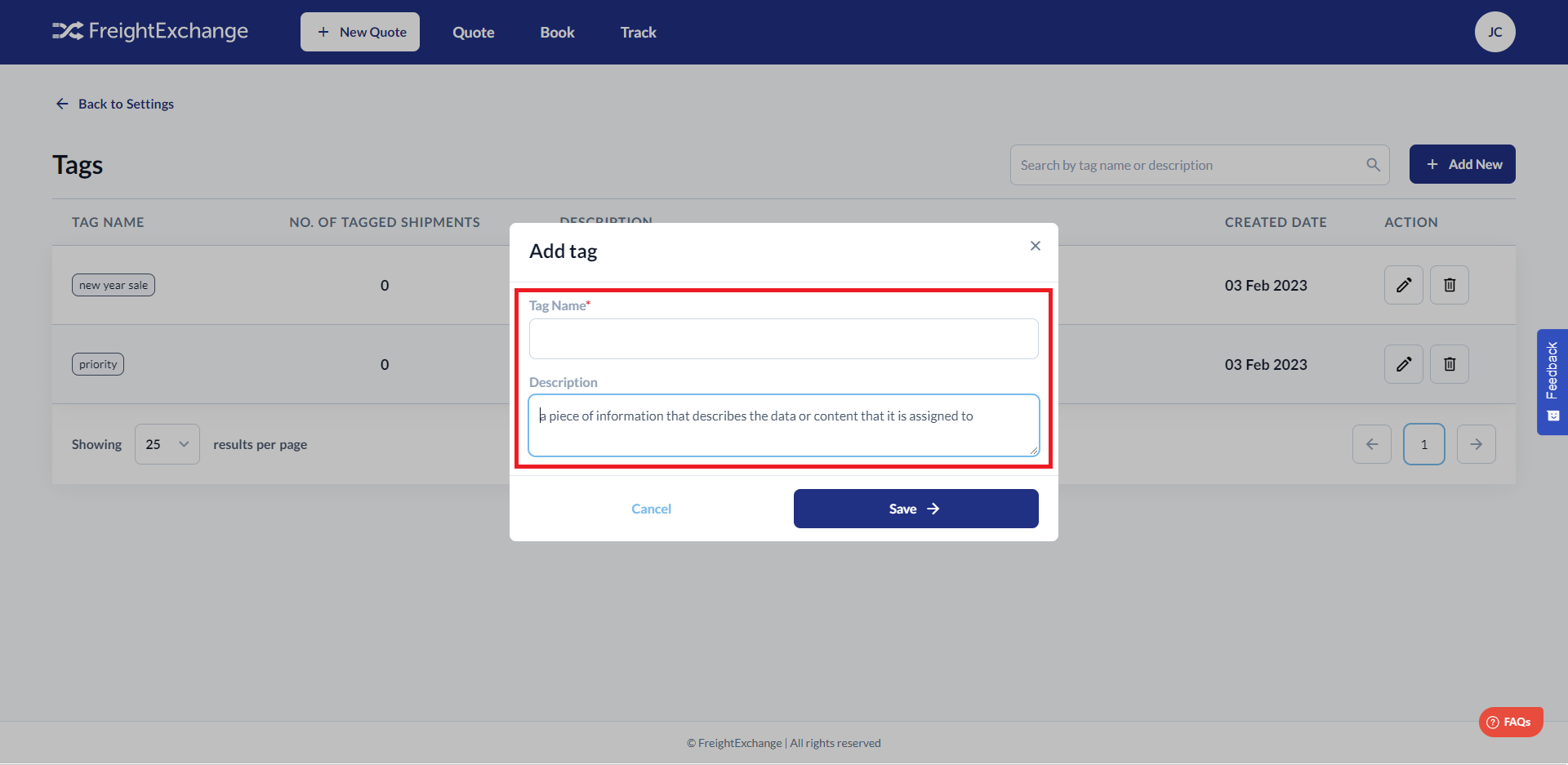
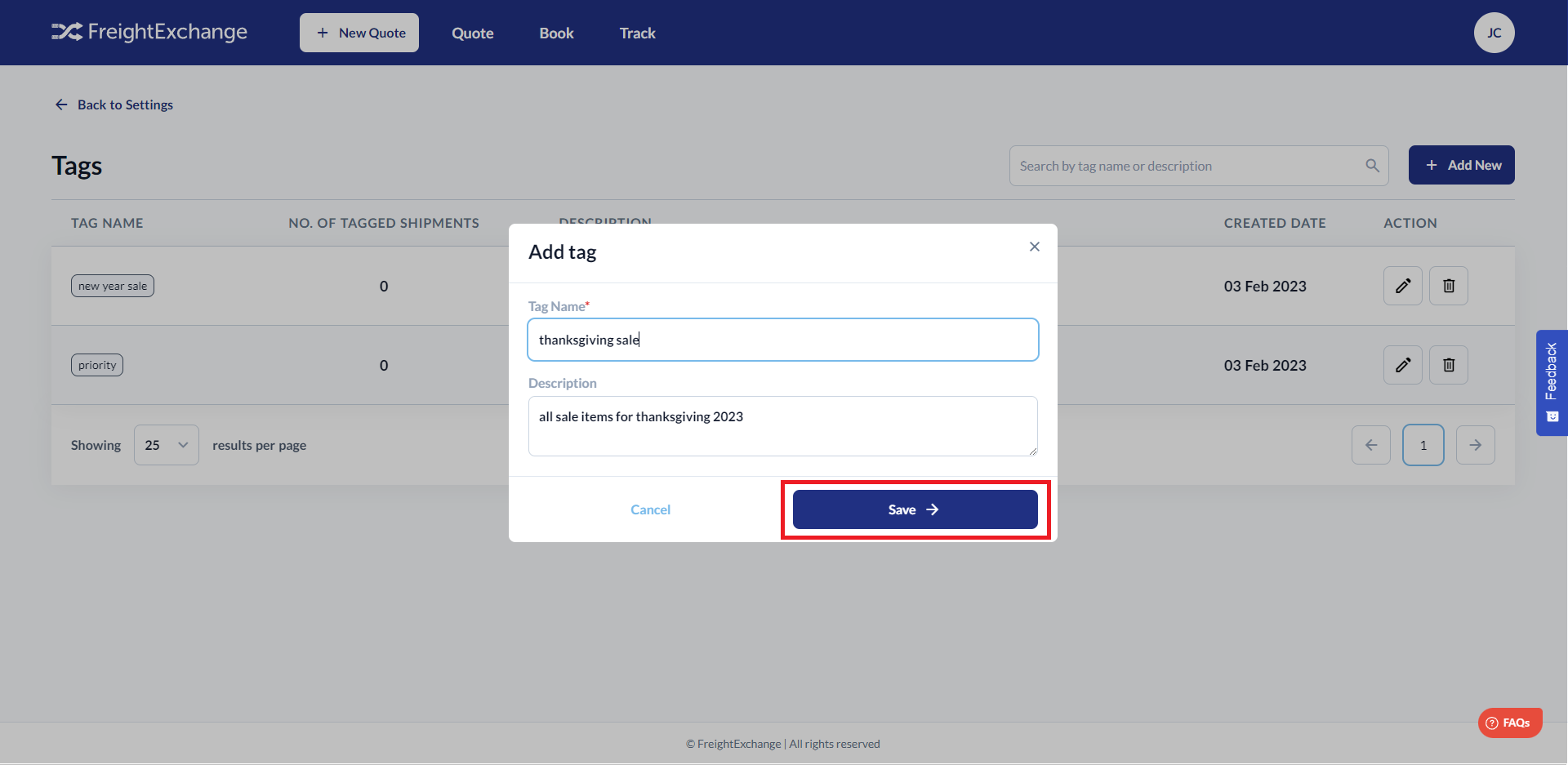
- Enter the tag name and the description.
- Click Save
Step by Step Guide in Pictures
Click on the "+Add New" button.
Enter the tag name and the description.
Click Save.

Was this article helpful?
That’s Great!
Thank you for your feedback
Sorry! We couldn't be helpful
Thank you for your feedback
Feedback sent
We appreciate your effort and will try to fix the article