One of the key features of FreightExchange is the ability for customers to bring their own carrier accounts to the platform. If you have an existing account and rates with TNT(FedEx), you can easily bring your own accounts across to FreightExchange to receive quotes, print labels and book and track shipments along side our other broker carriers.
TABLE OF CONTENTS
Part 1: Get your Account Details
- Login to the TNT portal using this link.
- Access My Accounts. And under the drop-down you will find your account number. Select the Account Number and click on search it will display the name and address of the Account.
- Below details will be required to connect your TNT account with FreightExchange
| Account Number | Account Number provided by TNT |
| Prefix | Download a label generated by TNT and enter the first 3 characters from the Connote Number |
| Sender Code | FreightExchange will update the Sender Code once received from TNT |
| Label Code | This is the unique code which will assist in tracking the shipments under your account. FreightExchange will update the Label Code once we receive it from TNT |
To enable Tracking, FreightExchange will request TNT to start sending the tracking details for your shipments to FreightExchange.
For Label Code
This must be generated manually by referring to the Prefix, using the following conversion:
- A = 10
- B = 11
- …
- Z = 35
Example 1: Prefix XOT
- X = 33
- O = 24
- T = 29
→ Label Code = 332429
Example 2: Prefix ABC
- A = 10
- B = 11
- C = 12
→ Label Code = 101112
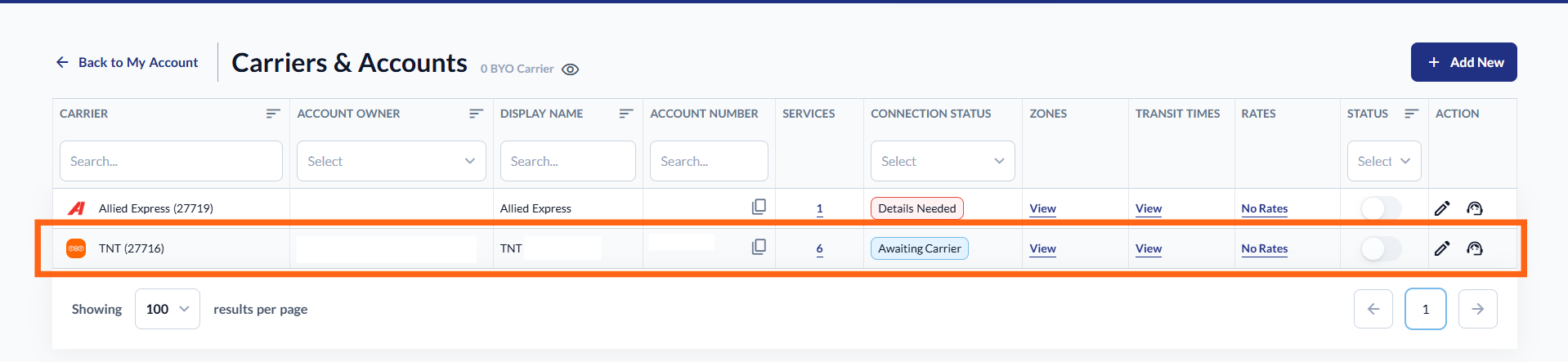
Once all three fields (Prefix, Sender Code, and Label Code) have been entered, save the configuration. The status will then show as “Awaiting Carrier”.
Please email our team at ops@freightexchange.com to enable it.
Once the status is updated to “Connected”, you will be able to proceed with the next steps, including adding zones, rates, transit times, and testing.
Verification
After completing all the steps above, it is important to perform a test booking and send the labels to the carrier for verification.
To do this:
- Create a test booking using TNT from your account
- Dispatch the booking for a future pickup date
- Download the shipping labels
- Send the labels to your account manager for verification
Example email:
Hi there,


Thanks for the details. We have successfully integrated our account and made a test consignment booking: XXXXX


Please assist to verify the attached labels.
And, please cancel the test consignment and Pickup Booking XXXXX for the consignment.


Thanks.
Part 2: Set-up your BYO Carrier Account in FreightExchange
Follow the instructions in our How To Connect Your BYO Carrier Accounts help article.
Once all the above steps are done, you can proceed to book your shipments without your rates being loaded.
If you prefer to upload your own rates, you can download your TNT rate card and upload it directly into your FreightExchange account.
See Manage BYO Carrier Zones, Transit Times, & Rate Cards
How To Find Your TNT Rate Card
Step by Step Instructions
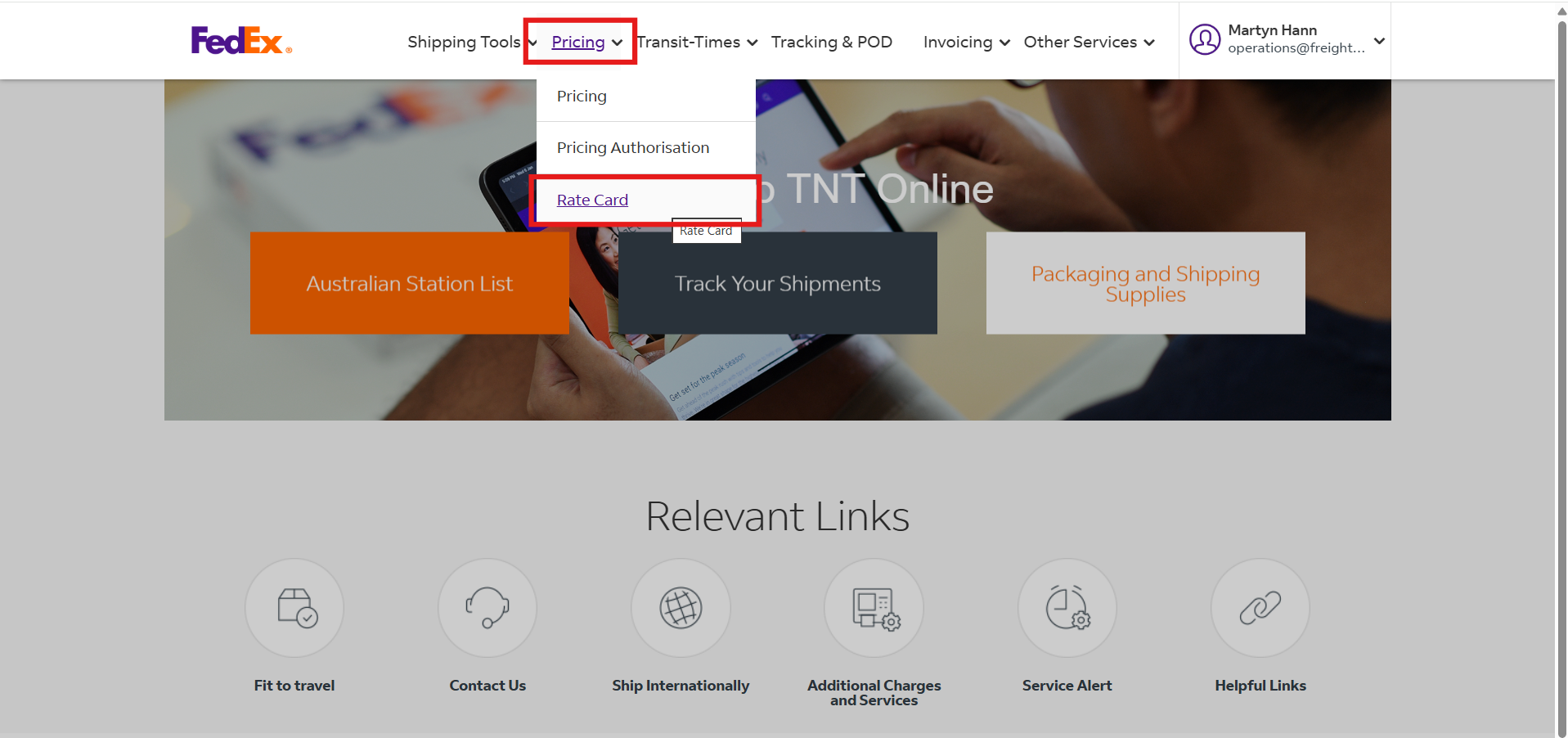
- Log in to the Fedex website > Pricing > "Rate Card"
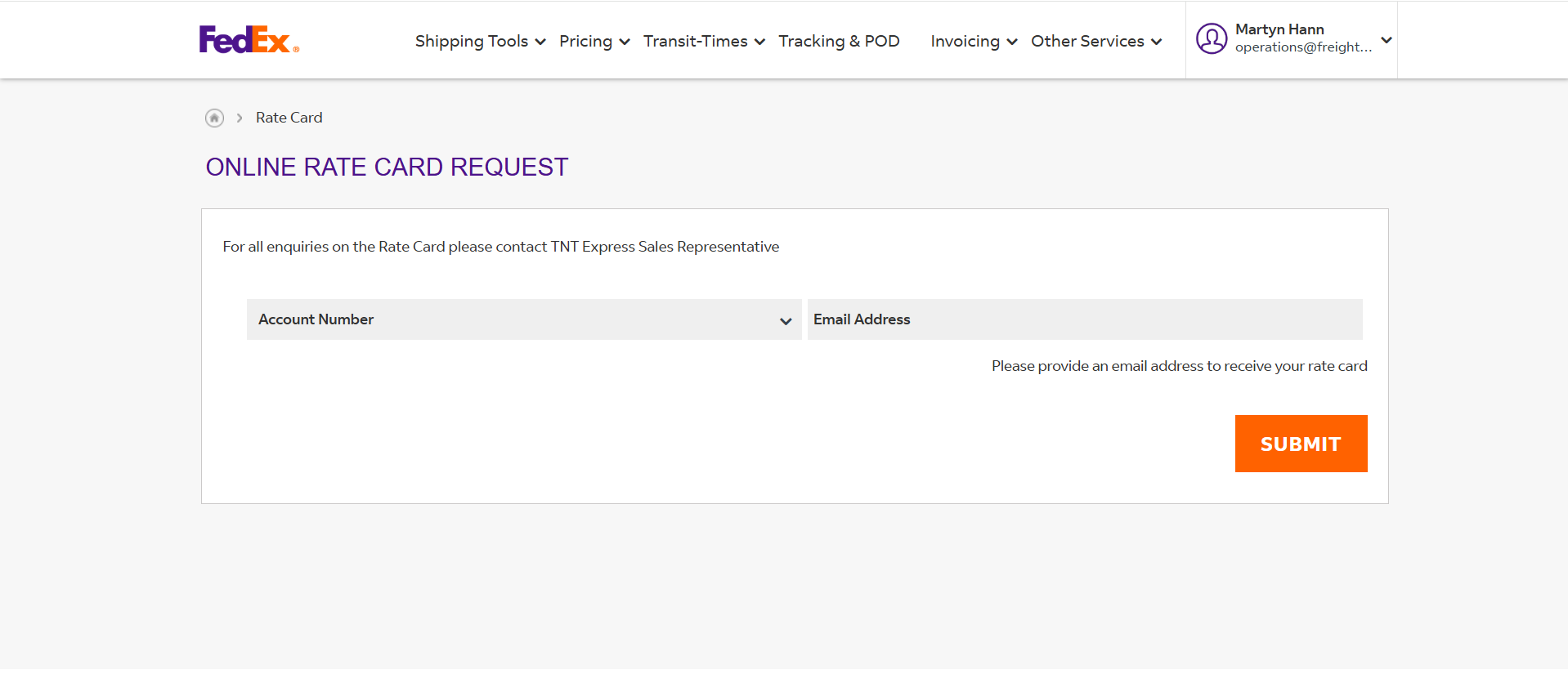
- Complete the Online Rate Card Request form.
- In the Account Number field, choose the account number from the dropdown.
- In the Account Number field, choose the account number from the dropdown.
Need help with setup?
If you’d like assistance configuring your carrier account or uploading rate cards, our team can help complete this for you as a one-time configuration service.
Was this article helpful?
That’s Great!
Thank you for your feedback
Sorry! We couldn't be helpful
Thank you for your feedback
Feedback sent
We appreciate your effort and will try to fix the article