If you have an existing account and rates with Allied Express, you can easily bring your own accounts across to FreightExchange to receive quotes, print labels and book and track shipments along side our other broker carriers.
Part 1: Connect Your Allied Express Account to FreightExchange
To connect your Allied Express account to FreightExchange, we first need Allied Express to link your account to the FreightExchange group.
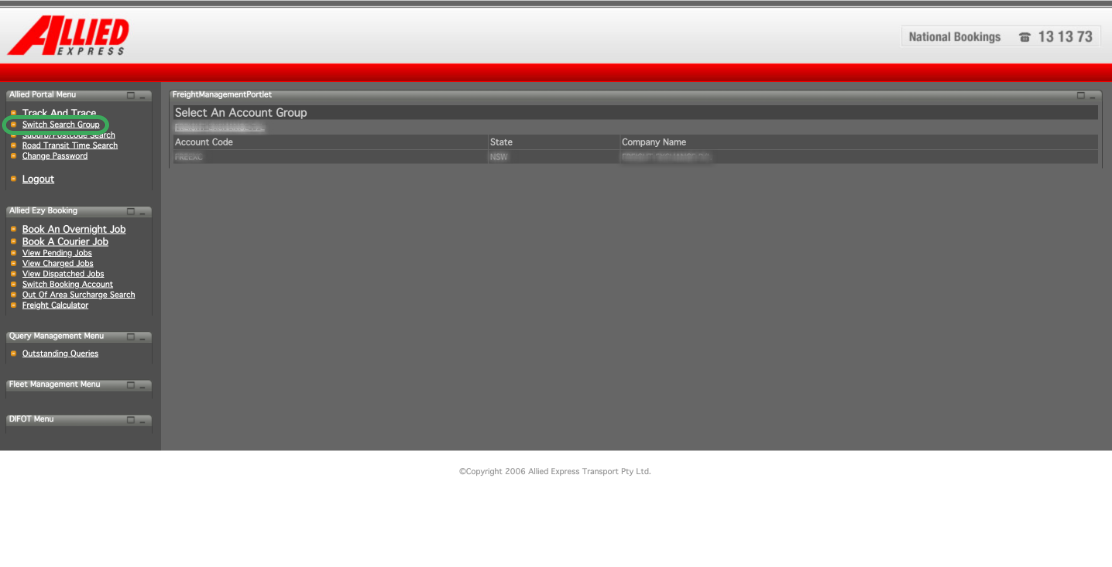
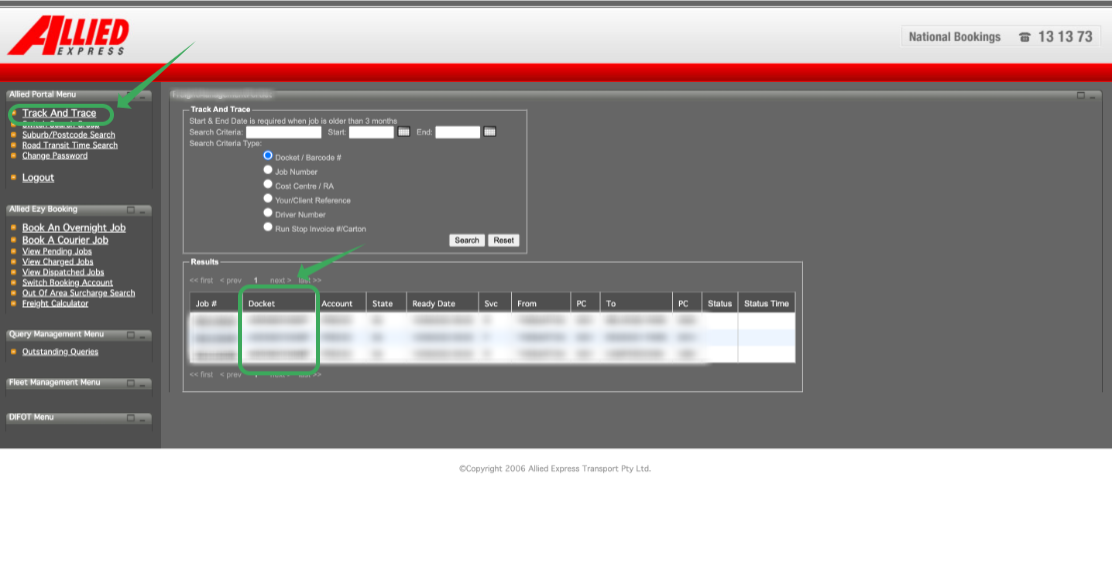
Step 1: Gather Your Account Details
Contact your Allied Express account manager (or log in to your Allied Express account) and have the following ready:
- Your Account Code (6-digit code)
- Your Account Prefix (the first 3 letters or numbers of your consignments/dockets)
Step 2: Request Access to the FreightExchange Group
Send the following email to have your account linked to FreightExchange:
To: client.Integrations@alliedexpress.com.au
Email Template
Dear Allied Express Account Manager,
I am setting up an integration in the FreightExchange system and would like to request the following details:
- Account Code: [Your 6-digit code]
- Account Prefix: [Your 3-digit code]
- Suffix Length: 3
- Default Length: 9
- Prefix Length: 3
- Allied Rep: [xx@alliedexpress.com.au]
- Customer: [Your Company Name]
- System: FreightExchange
- Estimated Start Date: [Insert Start Date]
Please also confirm once our account has been added to the FreightExchange group.
Kind regards,
[Your Name]
Step 3: Prepare Your Carrier Information
While Allied Express processes your request, please have the following information ready for documentation purposes:
A. Your Account Manager’s Contact Details
Please provide:
- Email address
- Phone number
What Happens Next?
Once Allied Express confirms that your account has been linked, we can proceed with testing and finalise the integration.
Part 2: Test Bookings
Once you have completed the setup, perform test bookings to confirm your configuration is correct.
To do this:
- Run sample quotes and check that the rates returned by the system are correct.
- Review the generated labels and have them signed off by your account manager.
- Confirm with your account manager that the test bookings were received as expected in their system.
This validation helps ensure your setup is working correctly before processing live bookings.
Need help with setup?
If you’d like assistance configuring your carrier account or uploading rate cards, our team can help with the setup on your behalf. Please note this is available as a one-time configuration service (fee applies).
Was this article helpful?
That’s Great!
Thank you for your feedback
Sorry! We couldn't be helpful
Thank you for your feedback
Feedback sent
We appreciate your effort and will try to fix the article